
Here’s the Simple Fix for Overseas Pakistanis
If you’re an overseas Pakistani and your passport—or your loved one’s passport—is due for renewal, you may be using the Directorate General of Immigration & Passports (DGIP) website to apply for an online passport renewal.
The process is fairly straightforward, but there’s one small issue that can be surprisingly frustrating: the 2FA (two-factor authentication) verification page can appear to be stuck.
If you’re entering your authentication code correctly but keep landing on the same page, there’s a simple trick you need to know.
The DGIP 2FA problem
When logging into your DGIP account, you may be asked to enter a 2FA PIN generated by an authenticator app.
If you’re using a laptop or desktop, the natural thing to do after entering the code is to press Enter on your keyboard.
That seems like the obvious thing to do.
Unfortunately, doing this may simply reload the same page instead of taking you to the next step.
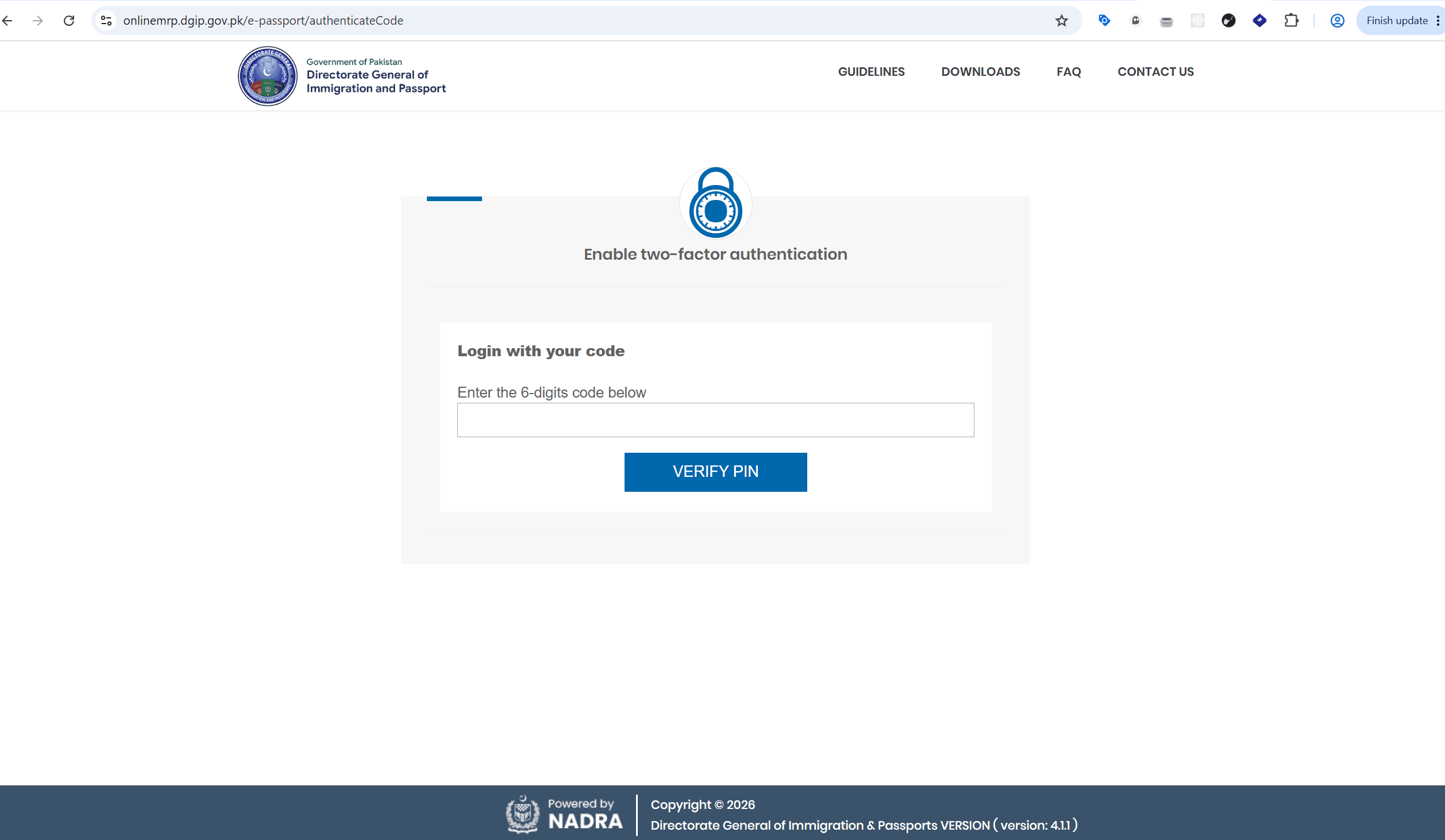
The simple fix: Click “Verify PIN”
Here’s the catch:
Don’t press Enter after entering your 2FA code.
Instead, manually click the “Verify PIN” button on the page.
Once you click Verify PIN, the website should process the authentication code and take you to the next page.
It’s a small detail, but it’s not particularly obvious—and if you’re not aware of it, you may end up thinking that your authenticator app or DGIP account is broken.
.png&w=1080&q=75)
In short:
- Open your authenticator app.
- Enter the current 2FA code into the DGIP website.
- Do not press Enter on your keyboard.
- Click “Verify PIN.”
- You should then proceed to the next page.
What if you forgot your password or need to reset 2FA?
If you’ve forgotten your DGIP password, or you simply want to reset your 2FA setup, the process is relatively straightforward.
Click “Forgot Password” and follow the instructions to reset your password.
After resetting your password and logging back into your account, you may be prompted to set up 2FA again by scanning a barcode/QR code.
You can use an authenticator app such as:
- Microsoft Authenticator
- Google Authenticator
Both can be used to generate the 2FA codes required for login.
Once you’ve scanned the QR code and added the account to your authenticator app, use the generated PIN when prompted by DGIP.
One small thing that can save you a lot of frustration
The main takeaway is simple:
If your DGIP 2FA code is correct but the page isn't progressing, try clicking “Verify PIN” instead of pressing Enter.
Sometimes the smallest interface details can cause the biggest headaches—especially when you’re trying to renew a passport from overseas and just want to get the application completed.
Hopefully, this saves another overseas Pakistani from spending unnecessary time wondering whether their authenticator app is working correctly.
Note: Website interfaces and authentication procedures can change over time. If the DGIP website behaves differently from the steps described here, check the latest instructions provided by DGIP.